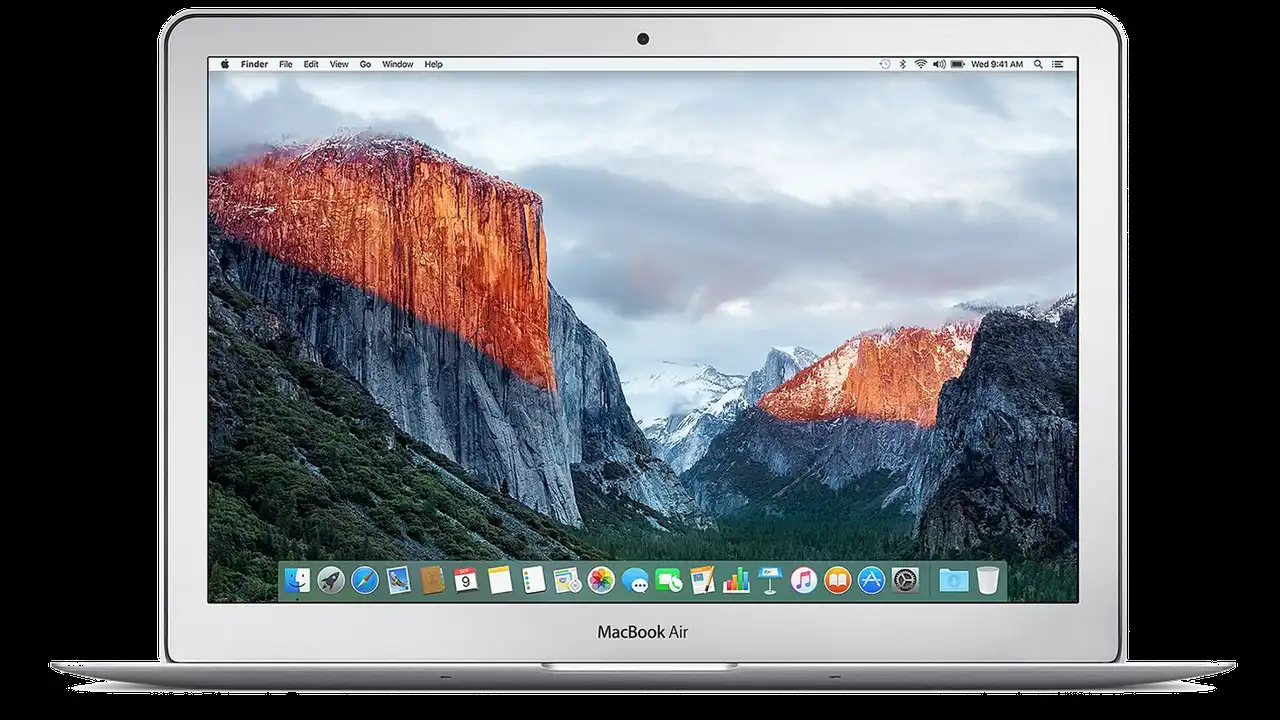
Top 5 Software Tools for Laptop Productivity
Maximize your efficiency with these top 5 software tools for your laptop. Organize tasks, manage projects, and streamline your workflow.
Maximize your efficiency with these top 5 software tools for your laptop. Organize tasks, manage projects, and streamline your workflow. In today's fast-paced digital world, a laptop is more than just a device; it's a gateway to productivity, creativity, and connection. But even the most powerful hardware can fall short without the right software to back it up. Whether you're a student juggling assignments, a remote professional managing complex projects, or a creative individual bringing ideas to life, optimizing your workflow is key to success. This article dives deep into the top 5 software tools that can transform your laptop into a productivity powerhouse, helping you organize tasks, manage projects, and streamline your daily operations. We'll explore their features, ideal use cases, compare different options, and even touch upon pricing to help you make an informed decision.
Top 5 Software Tools for Laptop Productivity
Task Management Software Keeping Your To-Do List in Check
Let's face it, our brains aren't designed to remember every single task, deadline, and idea that pops up. That's where dedicated task management software comes in. These tools act as your digital assistant, ensuring nothing falls through the cracks and helping you prioritize what truly matters. They're essential for anyone looking to maintain order in their professional and personal lives.
Why You Need a Task Manager
- Clarity and Focus: Break down large projects into smaller, manageable tasks.
- Prioritization: Easily identify high-priority items and tackle them first.
- Reduced Stress: Offload mental clutter and trust your system to remind you.
- Improved Collaboration: Share tasks and track progress with team members.
Recommended Task Management Tools
Todoist
Overview: Todoist is a popular choice for its simplicity, powerful features, and cross-platform availability. It's designed to be intuitive, allowing you to quickly add tasks, set due dates, and organize them into projects. Its natural language input is a game-changer – just type 'buy groceries tomorrow at 5 pm' and it understands.
Key Features:
- Natural language input for quick task creation.
- Projects and sub-projects for hierarchical organization.
- Labels and filters for advanced task sorting.
- Reminders and recurring tasks.
- Integrations with calendars, Slack, and more.
- Karma points and streaks for gamified motivation.
Use Cases: Personal task management, small team collaboration, managing household chores, tracking study assignments.
Pricing: Free plan available with basic features. Pro plan ($4/month billed annually) offers reminders, labels, filters, and more. Business plan ($6/user/month billed annually) adds team inbox, admin features, and shared projects.
Microsoft To Do
Overview: If you're already in the Microsoft ecosystem, Microsoft To Do is a seamless fit. It's a simple, intelligent to-do list that makes planning your day easy. It integrates beautifully with Outlook Tasks and offers a clean, user-friendly interface.
Key Features:
- 'My Day' feature for daily planning.
- Integration with Outlook Tasks.
- Lists, steps, due dates, and reminders.
- File attachments and notes.
- Sharing lists for collaboration.
Use Cases: Personal task management, users heavily invested in Microsoft Office suite, simple list-making.
Pricing: Free with a Microsoft account.
Asana
Overview: Asana is a robust project management tool that also excels at task management, especially for teams. It provides a comprehensive overview of projects, tasks, and deadlines, making it ideal for complex workflows and larger teams.
Key Features:
- Project views (list, board, timeline, calendar).
- Task assignments, due dates, and dependencies.
- Custom fields and rules for automation.
- Extensive integrations with other business tools.
- Workload management for teams.
Use Cases: Project management for marketing teams, software development, event planning, cross-functional collaboration.
Pricing: Basic plan is free for individuals and small teams (up to 15 members). Premium plan ($10.99/user/month billed annually) offers advanced features like timelines, custom fields, and rules. Business plan ($24.99/user/month billed annually) adds portfolios, goals, and advanced integrations.
Note-Taking and Information Organization Capturing Every Idea
Ideas strike at the most unexpected times. A great note-taking app ensures you can capture them instantly and organize them effectively, preventing valuable insights from being lost. Beyond quick notes, these tools become your personal knowledge base, storing everything from meeting minutes to research snippets.
The Power of Organized Notes
- Idea Capture: Jot down thoughts before they vanish.
- Knowledge Base: Create a searchable repository of information.
- Enhanced Learning: Summarize and synthesize information more effectively.
- Creative Outlet: Brainstorm, outline, and develop ideas.
Recommended Note-Taking Tools
Evernote
Overview: Evernote has long been a titan in the note-taking space, known for its powerful organization features and ability to capture almost anything. From text notes to web clippings, audio recordings, and PDFs, Evernote can store it all and make it searchable.
Key Features:
- Rich text editing with various formatting options.
- Web clipper for saving articles and web pages.
- PDF and document annotation.
- Powerful search, including text within images and PDFs.
- Notebooks, tags, and stacks for robust organization.
- Cross-device syncing.
Use Cases: Research, digital archiving, project documentation, personal journaling, recipe collection.
Pricing: Free plan (Evernote Free) with limited features and device sync. Personal plan ($14.99/month or $129.99/year) offers unlimited devices, larger upload limits, and advanced features. Professional plan ($17.99/month or $169.99/year) adds more storage, integrations, and team features.
Notion
Overview: Notion is often described as an 'all-in-one workspace' because it goes far beyond simple note-taking. It combines notes, databases, wikis, and project management into a highly customizable platform. It's incredibly flexible, allowing users to build their own systems for almost any need.
Key Features:
- Block-based editor for versatile content creation.
- Databases with various views (table, board, calendar, gallery).
- Templates for quick setup of common workflows.
- Wiki-style page linking for interconnected knowledge.
- Collaboration features for team workspaces.
Use Cases: Personal knowledge management, team wikis, content calendars, CRM, project tracking, habit tracking.
Pricing: Free plan for personal use with unlimited blocks. Plus plan ($8/month billed annually) for individuals and small teams with larger file uploads and guest access. Business plan ($15/user/month billed annually) for larger teams with advanced security and admin tools.
Obsidian
Overview: Obsidian is a unique note-taking app that focuses on building a 'second brain' through linked notes. It uses Markdown for formatting and stores notes locally as plain text files, giving users complete control over their data. Its graph view visually represents the connections between your ideas.
Key Features:
- Local Markdown files for notes.
- Bi-directional linking between notes.
- Graph view to visualize connections.
- Extensible with a rich plugin ecosystem.
- Daily notes, templates, and tags.
Use Cases: Personal knowledge management, academic research, creative writing, building interconnected ideas.
Pricing: Free for personal use. Catalyst license (one-time payment starting at $25) for early access to new features and supporting development. Obsidian Sync ($10/month billed annually) for encrypted cloud syncing. Obsidian Publish ($10/month billed annually) to publish notes as a website.
Communication and Collaboration Tools Staying Connected and Productive
In an increasingly remote and distributed work environment, effective communication and collaboration tools are non-negotiable. They bridge geographical gaps, facilitate real-time discussions, and ensure everyone is on the same page, regardless of their location.
The Importance of Seamless Communication
- Real-time Interaction: Quick decisions and problem-solving.
- Shared Workspaces: Collaborate on documents and projects simultaneously.
- Reduced Email Clutter: Move discussions to more organized channels.
- Team Cohesion: Foster a sense of connection among team members.
Recommended Communication Tools
Slack
Overview: Slack has revolutionized team communication, offering a channel-based messaging platform that organizes conversations by topic, project, or team. It's known for its extensive integrations, making it a central hub for many teams' workflows.
Key Features:
- Channels for organized conversations.
- Direct messaging and group chats.
- File sharing and search functionality.
- Voice and video calls.
- Thousands of app integrations (Google Drive, Asana, Zoom, etc.).
Use Cases: Team communication, project discussions, client communication, internal announcements.
Pricing: Free plan with limited message history and integrations. Pro plan ($7.25/user/month billed annually) offers unlimited message history, more integrations, and group calls. Business+ plan ($12.50/user/month billed annually) adds advanced security and compliance features.
Microsoft Teams
Overview: Microsoft Teams is a comprehensive collaboration platform that combines chat, video meetings, file storage, and application integration. It's particularly strong for organizations already using Microsoft 365, offering deep integration with Word, Excel, PowerPoint, and Outlook.
Key Features:
- Persistent chat and threaded conversations.
- Video conferencing and screen sharing.
- Integrated file storage (SharePoint/OneDrive).
- Live events and webinars.
- Extensive app integrations, especially within the Microsoft ecosystem.
Use Cases: Team collaboration, online meetings, remote learning, project management within Microsoft 365 environments.
Pricing: Free version available. Included with various Microsoft 365 business plans (e.g., Microsoft 365 Business Basic at $6/user/month, Microsoft 365 Business Standard at $12.50/user/month).
Zoom
Overview: While primarily known for its video conferencing capabilities, Zoom has become an indispensable tool for virtual meetings, webinars, and online collaboration. Its reliability and ease of use have made it a global standard for face-to-face digital interactions.
Key Features:
- High-quality video and audio conferencing.
- Screen sharing and annotation.
- Breakout rooms for small group discussions.
- Recording meetings to the cloud or local device.
- Virtual backgrounds and touch-up features.
Use Cases: Online meetings, webinars, virtual events, remote interviews, online classes.
Pricing: Free plan for meetings up to 40 minutes with up to 100 participants. Pro plan ($149.90/year/license) offers longer meetings, cloud recording, and user management. Business plan ($199.90/year/license) adds more participants, single sign-on, and company branding.
Cloud Storage and File Management Keeping Your Data Safe and Accessible
Gone are the days of relying solely on local hard drives. Cloud storage and file management solutions ensure your important documents, photos, and projects are securely backed up, accessible from anywhere, and easily shareable with others. This is crucial for data security and flexible work arrangements.
Benefits of Cloud-Based File Management
- Accessibility: Access files from any device, anywhere.
- Data Security: Protection against hardware failure and loss.
- Collaboration: Share and co-edit documents in real-time.
- Version Control: Track changes and revert to previous versions.
Recommended Cloud Storage Tools
Google Drive
Overview: Google Drive is a cornerstone of Google's ecosystem, offering robust cloud storage integrated with Google Docs, Sheets, and Slides. It's incredibly user-friendly and provides excellent collaboration features, making it a go-to for many individuals and teams.
Key Features:
- 15 GB free storage.
- Seamless integration with Google Workspace apps.
- Real-time collaboration on documents.
- Powerful search capabilities.
- File sharing with granular permissions.
Use Cases: Document storage, collaborative writing, sharing large files, personal backups.
Pricing: 15 GB free. Google One plans start at $1.99/month for 100 GB, $2.99/month for 200 GB, and $9.99/month for 2 TB.
Dropbox
Overview: Dropbox is renowned for its simplicity and reliability in file syncing and sharing. It's often praised for its intuitive interface and robust desktop client, making file management feel effortless.
Key Features:
- File sync across all devices.
- Easy file sharing with links.
- Version history and file recovery.
- Selective sync to save local storage.
- Integrations with many third-party apps.
Use Cases: File sharing, personal backups, creative asset management, client file delivery.
Pricing: 2 GB free. Plus plan ($11.99/month or $119.88/year) offers 2 TB for individuals. Family plan ($19.99/month or $203.88/year) offers 2 TB for up to 6 users. Business plans start at $18/user/month for 5 TB.
OneDrive
Overview: Microsoft OneDrive is deeply integrated with Windows and Microsoft 365, making it a natural choice for users within that ecosystem. It offers personal vault for sensitive files, robust sharing options, and seamless integration with Office applications.
Key Features:
- 5 GB free storage.
- Integration with Windows File Explorer and Office apps.
- Personal Vault for extra security.
- File sharing and co-authoring.
- Files On-Demand to save local space.
Use Cases: Document storage, personal backups, collaborative work within Microsoft 365, syncing files across Windows devices.
Pricing: 5 GB free. Microsoft 365 Personal ($6.99/month or $69.99/year) includes 1 TB of OneDrive storage and Office apps. Microsoft 365 Family ($9.99/month or $99.99/year) includes 6 TB (1 TB per person) and Office apps for up to 6 people.
Time Management and Scheduling Maximizing Your Day
Time is our most valuable resource, and effective time management is crucial for productivity. Scheduling tools help you plan your day, manage appointments, and ensure you allocate enough time for important tasks, preventing burnout and missed deadlines.
The Value of Smart Scheduling
- Appointment Management: Never miss a meeting or deadline.
- Time Blocking: Dedicate specific time slots to tasks.
- Availability Sharing: Easily coordinate meetings with others.
- Reduced Distractions: Focus on one task at a time.
Recommended Time Management Tools
Google Calendar
Overview: Google Calendar is a widely used, free, and highly effective scheduling tool. Its clean interface, powerful event creation features, and seamless integration with other Google services make it a staple for personal and professional use.
Key Features:
- Multiple calendar views (day, week, month, year, schedule).
- Event creation with reminders, locations, and video conferencing links.
- Sharing calendars with others.
- Integration with Gmail, Google Meet, and Google Tasks.
- Goal setting and smart scheduling.
Use Cases: Personal scheduling, team meeting coordination, event planning, setting reminders for appointments.
Pricing: Free with a Google account. Included with Google Workspace business plans.
Calendly
Overview: Calendly simplifies the process of scheduling meetings by eliminating the back-and-forth emails. You set your availability, share your Calendly link, and others can book a time that works for both of you, automatically adding it to your calendar.
Key Features:
- Automated meeting scheduling.
- Integration with multiple calendars (Google, Outlook, iCloud).
- Customizable meeting types and durations.
- Automated reminders and follow-ups.
- Team scheduling features.
Use Cases: Client meetings, sales calls, interviews, coaching sessions, scheduling appointments with multiple participants.
Pricing: Free Basic plan with limited event types. Standard plan ($10/user/month billed annually) offers unlimited event types, integrations, and automated workflows. Teams plan ($16/user/month billed annually) adds team pages, routing forms, and admin features.
Toggl Track
Overview: While primarily a time tracking tool, Toggl Track is invaluable for understanding how you spend your time, which is the first step to managing it better. It offers simple, one-click time tracking across all devices and provides insightful reports.
Key Features:
- One-click time tracking.
- Project and client tracking.
- Detailed reports and dashboards.
- Integrations with project management tools.
- Idle detection and reminders.
Use Cases: Freelancers tracking billable hours, project managers monitoring team time, individuals analyzing personal productivity, improving time allocation.
Pricing: Free plan for up to 5 users with basic time tracking. Starter plan ($9/user/month billed annually) adds billable rates, project dashboards, and saved reports. Premium plan ($18/user/month billed annually) offers team management, time audits, and advanced features.
Focus and Distraction Management Staying in the Zone
In an age of constant notifications and endless digital distractions, maintaining focus is a superpower. Focus and distraction management tools help you create a conducive work environment, block out noise, and stay on task, leading to higher quality work and reduced procrastination.
Battling Digital Distractions
- Minimize Interruptions: Block distracting websites and apps.
- Structured Work Periods: Implement techniques like the Pomodoro Technique.
- Improved Concentration: Train your brain to stay focused longer.
- Increased Output: Get more done in less time.
Recommended Focus Tools
Forest
Overview: Forest is a unique and gamified focus app that helps you stay off your phone and concentrate on your work. When you want to focus, you plant a virtual tree. If you leave the app before your timer is up, your tree dies. Successfully complete your focus session, and your tree grows, contributing to a virtual forest.
Key Features:
- Gamified focus timer (Pomodoro-like).
- Whitelist for essential apps.
- Track your focus history and progress.
- Plant real trees through partnerships with tree-planting organizations.
- Cross-device syncing.
Use Cases: Overcoming phone addiction, implementing Pomodoro Technique, improving concentration during study or work sessions.
Pricing: Free on Android with in-app purchases. iOS version is a one-time purchase (around $3.99).
Cold Turkey Blocker
Overview: Cold Turkey Blocker is a powerful and highly effective website and application blocker for Windows and macOS. It's designed to be difficult to circumvent once activated, making it ideal for serious distraction management. You can set schedules, block specific apps, and even lock yourself out for a set period.
Key Features:
- Block websites and applications.
- Scheduled blocks and timers.
- Whitelist for essential sites.
- Frozen Turkey mode for extreme blocking.
- Password protection to prevent easy disabling.
Use Cases: Students needing to focus on assignments, professionals battling social media addiction, anyone needing to eliminate digital distractions during work hours.
Pricing: Free version with basic blocking. Pro version (one-time payment of around $39) offers scheduled blocks, app blocking, and advanced features.
Freedom
Overview: Freedom is a comprehensive distraction blocker that works across all your devices (Mac, Windows, iOS, Android, Chrome). It allows you to block distracting websites and apps for scheduled sessions, helping you reclaim your focus and productivity.
Key Features:
- Block websites and apps across multiple devices.
- Scheduled sessions and recurring blocks.
- Customizable blocklists.
- Session history and insights.
- Locked mode to prevent early session termination.
Use Cases: Individuals and teams needing to eliminate distractions across their entire digital ecosystem, students preparing for exams, writers needing uninterrupted creative time.
Pricing: Free trial available. Premium plan ($8.99/month, $3.49/month billed annually, or $199 lifetime) offers unlimited sessions and device syncing.
Choosing the right software tools can significantly impact your daily productivity and overall well-being. By investing in tools that help you manage tasks, organize information, communicate effectively, store files securely, schedule your time wisely, and minimize distractions, you're not just buying software – you're investing in a more efficient, focused, and less stressful work life. Experiment with these recommendations to find the perfect combination that fits your unique workflow and helps you achieve your goals.
:max_bytes(150000):strip_icc()/277019-baked-pork-chops-with-cream-of-mushroom-soup-DDMFS-beauty-4x3-BG-7505-5762b731cf30447d9cbbbbbf387beafa.jpg)