Smartphone Security Tips to Protect Your Data
Enhance your mobile security with these essential tips. Protect your personal data, privacy, and device from cyber threats.
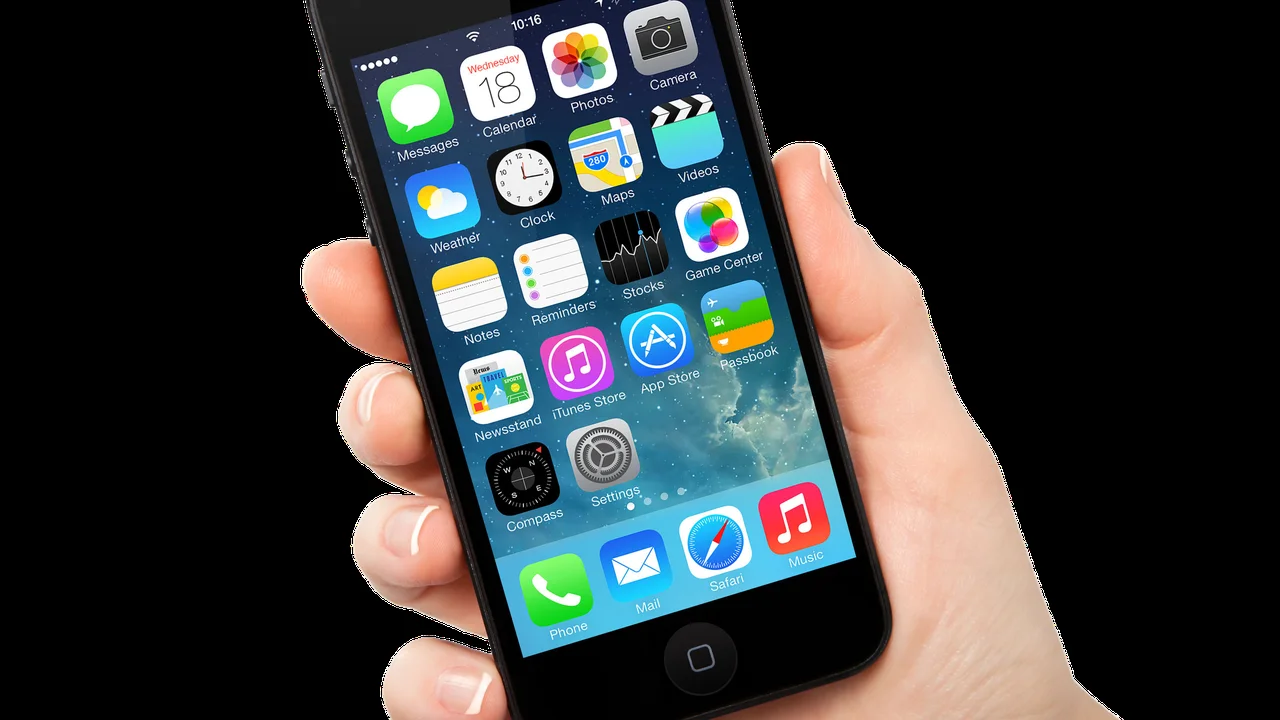
Enhance your mobile security with these essential tips. Protect your personal data, privacy, and device from cyber threats.
Smartphone Security Tips to Protect Your Data
Hey everyone! In today's digital world, our smartphones are practically extensions of ourselves. They hold everything from our precious photos and personal messages to banking apps and work emails. Losing that data or, even worse, having it fall into the wrong hands, can be a real nightmare. That's why beefing up your smartphone's security isn't just a good idea; it's absolutely essential. We're talking about protecting your personal data, maintaining your privacy, and keeping your device safe from all sorts of cyber threats. Let's dive into some practical, easy-to-implement tips that'll make your phone a digital fortress.
Understanding Smartphone Security Risks and Why They Matter
Before we get into the 'how,' let's quickly chat about the 'why.' What exactly are we protecting against? Well, the threats are pretty diverse. We've got:
- Malware and Viruses: Nasty software designed to steal your data, mess with your phone's performance, or even take control of it.
- Phishing Attacks: Tricky messages or emails that try to trick you into giving up sensitive information like passwords or credit card numbers.
- Physical Theft or Loss: The most obvious one. If your phone is stolen, you want to make sure the thief can't access your stuff.
- Data Breaches: Sometimes, the services you use (social media, online shopping) get hacked, and your data might be exposed. While not directly a phone security issue, strong phone security can mitigate the fallout.
- Unsecured Wi-Fi Networks: Public Wi-Fi can be a playground for snoopers if you're not careful.
The stakes are high. Identity theft, financial fraud, reputational damage – these are all potential consequences of lax smartphone security. So, let's get serious about protecting ourselves!
Essential Security Practices for Your Mobile Device
1. Lock Your Phone Always Use a Strong Passcode Biometrics
This might sound super basic, but it's the first line of defense. A simple swipe or a 4-digit PIN just doesn't cut it anymore. You need a strong passcode, preferably alphanumeric, or even better, use biometric authentication.
- Strong Passcode: Aim for at least 6 digits, mixing numbers, letters (if your phone allows), and symbols. Avoid obvious sequences like '123456' or your birthday.
- Fingerprint Scanner: Most modern smartphones have this. It's fast, convenient, and generally very secure. Make sure to set it up properly.
- Face Recognition: Another excellent option, especially on newer devices. Just be aware that some older or less sophisticated face unlock systems can be fooled by photos. Apple's Face ID, for example, is considered highly secure.
Product Recommendation: Most flagship phones from Apple (iPhone 15 Pro Max, iPhone 14), Samsung (Galaxy S24 Ultra, S23), and Google (Pixel 8 Pro, Pixel 7) offer robust biometric security features like advanced facial recognition and in-display fingerprint scanners. Even mid-range phones like the Samsung Galaxy A54 or Google Pixel 7a come with reliable fingerprint sensors.
2. Keep Your Software Updated The Latest Security Patches
Those annoying update notifications? Don't ignore them! Software updates, especially operating system updates (iOS or Android), often include critical security patches. These patches fix vulnerabilities that hackers could exploit. Think of it like patching holes in your digital fence.
- Enable Automatic Updates: If possible, set your phone to automatically download and install updates overnight.
- Check Manually: Periodically go into your phone's settings (usually under 'About Phone' or 'Software Update') and check for updates.
Why it matters: Major security flaws like 'Stagefright' on Android or various iOS vulnerabilities have been patched through these updates. Running outdated software is like leaving your front door unlocked.
3. Be Smart About App Downloads Only Trustworthy Sources
The app store is a wonderland, but it can also be a minefield. Stick to official app stores (Google Play Store for Android, Apple App Store for iOS) as they have vetting processes in place. Even then, exercise caution.
- Read Reviews: Before downloading, check the app's reviews and ratings. Look for red flags like generic reviews or complaints about suspicious behavior.
- Check Permissions: When an app asks for permissions (e.g., access to your camera, microphone, contacts), think if it truly needs them. A flashlight app doesn't need access to your contacts!
- Avoid Sideloading: For Android users, 'sideloading' (installing apps from outside the Play Store) is risky. Only do it if you absolutely trust the source.
Product Recommendation: While not a product, the built-in security features of the Google Play Store (Google Play Protect) and Apple App Store (App Review Guidelines) are your best friends here. They constantly scan for malicious apps.
4. Use Strong Unique Passwords for All Accounts Password Managers
Your phone might be secure, but what about your online accounts? If you use the same password for everything, a breach on one service can compromise all your others. This is where strong, unique passwords and a password manager come in.
- Strong Passwords: Aim for at least 12 characters, mixing uppercase and lowercase letters, numbers, and symbols.
- Password Manager: This is a game-changer. It generates strong, unique passwords for all your accounts and stores them securely. You only need to remember one master password.
Product Recommendations (Password Managers):
- 1Password: Excellent cross-platform support, strong security, and user-friendly. Price: Starts around $2.99/month.
- LastPass: Popular choice with a good free tier for single-device use. Premium features for syncing across devices. Price: Free (basic), Premium starts around $3/month.
- Bitwarden: Open-source, highly secure, and offers a very generous free tier. Great for tech-savvy users. Price: Free (basic), Premium starts around $10/year.
- Dashlane: Known for its intuitive interface and additional features like VPN and dark web monitoring. Price: Free (basic), Premium starts around $3.33/month.
Usage Scenario: Imagine you're signing up for a new online store. Instead of reusing your old password, your password manager generates a complex, unique one for you and saves it. Next time you visit, it auto-fills. Easy and secure!
5. Enable Two-Factor Authentication 2FA for Enhanced Security
Even with a strong password, 2FA adds an extra layer of protection. It requires a second piece of verification, usually something you have (like your phone) or something you are (like a fingerprint), in addition to your password.
- SMS Codes: A code sent to your phone via text message. Convenient but can be vulnerable to SIM-swapping attacks.
- Authenticator Apps: Apps like Google Authenticator or Authy generate time-sensitive codes. More secure than SMS.
- Hardware Security Keys: The most secure option, a physical key you plug into your device.
Product Recommendations (Authenticator Apps):
- Google Authenticator: Free, simple, and widely supported.
- Authy: Offers cloud backup and multi-device sync, making it more convenient than Google Authenticator for some. Free.
Usage Scenario: You log into your email from a new computer. After entering your password, your email provider sends a code to your authenticator app on your phone. You enter that code, and only then are you granted access. Even if a hacker has your password, they can't get in without your phone.
6. Be Wary of Public Wi-Fi Networks VPN Solutions
Public Wi-Fi at cafes, airports, or hotels can be convenient, but it's often unsecured. This means snoopers on the same network could potentially intercept your data. A Virtual Private Network (VPN) is your best friend here.
- Use a VPN: A VPN encrypts your internet traffic, making it unreadable to anyone trying to snoop. It also masks your IP address.
- Avoid Sensitive Transactions: If you don't have a VPN, avoid doing online banking, shopping, or anything that involves sensitive personal information on public Wi-Fi.
Product Recommendations (VPN Services):
- NordVPN: Known for its speed, strong security features, and large server network. Price: Starts around $3.29/month.
- ExpressVPN: Excellent for privacy, user-friendly, and reliable. Price: Starts around $6.67/month.
- Surfshark: Affordable, allows unlimited simultaneous connections, and good for streaming. Price: Starts around $2.49/month.
- ProtonVPN: Offers a solid free tier with unlimited data, focusing on privacy. Price: Free (basic), Premium starts around $4.99/month.
Comparison: NordVPN and ExpressVPN are generally considered top-tier for overall performance and security, but they come at a higher price. Surfshark is a great budget-friendly option, especially if you have many devices. ProtonVPN is excellent for those prioritizing privacy and looking for a free option.
7. Regularly Back Up Your Data Cloud Storage External Drives
Even with the best security, accidents happen. Phones get lost, stolen, or damaged. Having a backup means you won't lose your precious memories and important documents.
- Cloud Backups: Services like Google Drive, iCloud, Dropbox, or OneDrive automatically back up your photos, videos, contacts, and app data.
- Local Backups: For extra peace of mind, you can also back up your phone to your computer.
Product Recommendations (Cloud Storage):
- Google Drive/Google Photos: Generous free tier (15GB shared across Drive, Gmail, Photos), excellent integration with Android. Price: Free (15GB), 100GB for $1.99/month.
- iCloud: Essential for iPhone users, seamlessly backs up device data. Price: Free (5GB), 50GB for $0.99/month.
- Dropbox: Reliable and widely used for file syncing and sharing. Price: Free (2GB), 2TB for $11.99/month.
- OneDrive: Microsoft's cloud storage, often bundled with Office 365. Price: Free (5GB), 100GB for $1.99/month.
Usage Scenario: Your phone takes an unexpected swim. Instead of panicking about losing all your vacation photos, you simply get a new phone, log into your cloud account, and all your photos are there, safe and sound.
8. Enable Find My Phone Feature Remote Wipe Capabilities
If your phone does go missing, 'Find My Device' (Android) or 'Find My' (iOS) can be a lifesaver. These features allow you to locate your phone on a map, remotely lock it, display a message, or even erase all its data.
- Locate: Pinpoint your phone's last known location.
- Lock: Remotely lock your phone and display a contact number.
- Erase: As a last resort, wipe all data to prevent unauthorized access.
How to Enable:
- Android: Go to Settings > Security > Find My Device and ensure it's turned on.
- iOS: Go to Settings > Your Name > Find My > Find My iPhone and ensure it's enabled.
Why it's crucial: This feature is your ultimate defense against data theft if your phone is physically lost or stolen. It gives you control even when the device is out of your hands.
9. Review App Permissions Regularly Data Privacy Settings
Remember those app permissions we talked about? It's a good idea to review them periodically. Apps sometimes update and request new permissions, or you might have granted something you no longer feel comfortable with.
- Android: Settings > Apps > Select an app > Permissions.
- iOS: Settings > Privacy & Security > Then go through categories like Photos, Camera, Microphone, etc.
- Revoke Unnecessary Permissions: If an app doesn't need access to your location 24/7, turn it off.
Why this helps: This practice helps limit the amount of data apps can collect about you, enhancing your overall privacy.
10. Be Aware of Phishing and Social Engineering Scams Suspicious Links
Hackers are clever, and they often try to trick you into giving them access. Be skeptical of unsolicited messages, emails, or calls.
- Don't Click Suspicious Links: If a link looks odd or comes from an unknown sender, don't click it.
- Verify Senders: If an email or message claims to be from your bank or a service, go directly to their official website or app instead of clicking links in the message.
- Beware of Urgency: Scammers often create a sense of urgency to make you act without thinking.
Usage Scenario: You get a text message saying your bank account has been locked and you need to click a link to verify your details. Instead of clicking, you open your bank's official app or call their customer service number directly to check. Smart move!
11. Consider Using a Secure Browser Privacy-Focused Browsing
While Chrome and Safari are popular, some browsers offer enhanced privacy and security features right out of the box.
- Brave Browser: Blocks ads and trackers by default, offers a built-in VPN (for a fee), and focuses on privacy.
- Firefox Focus: A privacy-focused browser that automatically blocks trackers and erases your browsing history when you close it.
- DuckDuckGo Browser: Emphasizes privacy, doesn't track your searches, and offers a 'Fire Button' to instantly clear all tabs and data.
Comparison: Brave and DuckDuckGo offer a more complete browsing experience with strong privacy features, while Firefox Focus is excellent for quick, private browsing sessions where you don't want any history left behind. All are free to download and use.
12. Encrypt Your Device Data Protection at Rest
Most modern smartphones come with encryption enabled by default. This means all the data on your phone is scrambled and can only be accessed with your passcode or biometric authentication. If your phone falls into the wrong hands, the data remains unreadable.
- Check Your Settings: For Android, go to Settings > Security > Encryption & Credentials. For iOS, encryption is automatic when you set a passcode.
Why it's important: Even if someone manages to bypass your lock screen or physically extract data from your phone's storage, encryption makes that data useless to them.
13. Be Mindful of What You Share Online Digital Footprint
This isn't strictly about phone security, but it's about your overall digital safety. What you post online can be used against you.
- Limit Personal Information: Avoid sharing your full address, phone number, or detailed travel plans publicly.
- Review Privacy Settings: Regularly check the privacy settings on your social media accounts.
- Think Before You Post: Once something is online, it's very hard to remove completely.
14. Use a Screen Protector and Case Physical Security
While we've focused on digital threats, physical security is also important. A cracked screen or a damaged phone can expose your data or make it unusable.
- Tempered Glass Screen Protector: Offers excellent protection against scratches and drops.
- Robust Phone Case: A good case can absorb impact and protect your phone from physical damage.
Product Recommendations:
- Spigen Tough Armor Case: Known for its dual-layer protection and kickstand. Price: $15-$25.
- OtterBox Defender Series: Offers heavy-duty protection, often with port covers. Price: $40-$60.
- ESR Tempered Glass Screen Protector: Affordable and reliable screen protection. Price: $8-$15 for a multi-pack.
Usage Scenario: Your phone slips out of your hand onto concrete. Thanks to your sturdy case and screen protector, it bounces harmlessly, and your screen remains intact. Crisis averted!
15. Disable Unnecessary Features Bluetooth NFC Location
Keeping features like Bluetooth, NFC, and location services on when you don't need them can create potential entry points for attackers or drain your battery unnecessarily.
- Turn off Bluetooth: When not paired with a device, turn off Bluetooth.
- Disable NFC: Only enable Near Field Communication (NFC) when you're making a payment or pairing devices.
- Limit Location Services: Review which apps have access to your location and set them to 'While Using' or 'Ask Next Time' rather than 'Always.'
16. Be Cautious with Charging Stations USB Data Transfer
Public charging stations can be convenient, but some malicious ones (known as 'juice jacking') can transfer malware to your phone or steal data while you charge. It's rare, but it happens.
- Use Your Own Charger: Always use your own wall adapter and cable.
- Portable Power Bank: Carry a power bank for safe charging on the go.
- Data Blocker: If you must use a public USB port, consider a 'USB data blocker' (also called a 'USB condom') that only allows power to flow, not data.
Product Recommendation:
- Anker PowerCore Portable Charger: A highly-rated and reliable power bank. Price: $20-$50 depending on capacity.
- PortaPow USB Data Blocker: Small, inexpensive device that prevents data transfer. Price: $7-$10.
17. Regularly Clear Cache and Browser History Digital Hygiene
While not a direct security threat, regularly clearing your phone's cache and browser history can improve performance and remove traces of your online activity, enhancing privacy.
- Clear App Cache: For Android, go to Settings > Apps > Select an app > Storage > Clear Cache. For iOS, you often need to offload or delete and reinstall apps to clear their cache.
- Clear Browser History: In your browser settings, you'll find options to clear browsing data, cookies, and cache.
Alright, so there you have it! A comprehensive guide to keeping your smartphone and your precious data safe and sound. It might seem like a lot, but many of these tips are one-time setups or simple habits to adopt. By implementing even a few of these, you'll significantly boost your mobile security posture. Stay safe out there, and keep those gadgets secure!
:max_bytes(150000):strip_icc()/277019-baked-pork-chops-with-cream-of-mushroom-soup-DDMFS-beauty-4x3-BG-7505-5762b731cf30447d9cbbbbbf387beafa.jpg)